
Keyboard shortcuts
All keys at a glance, taken straight from the program so the list is always right.
Questo capitolo non è ancora tradotto in italiano. Segue il testo inglese.
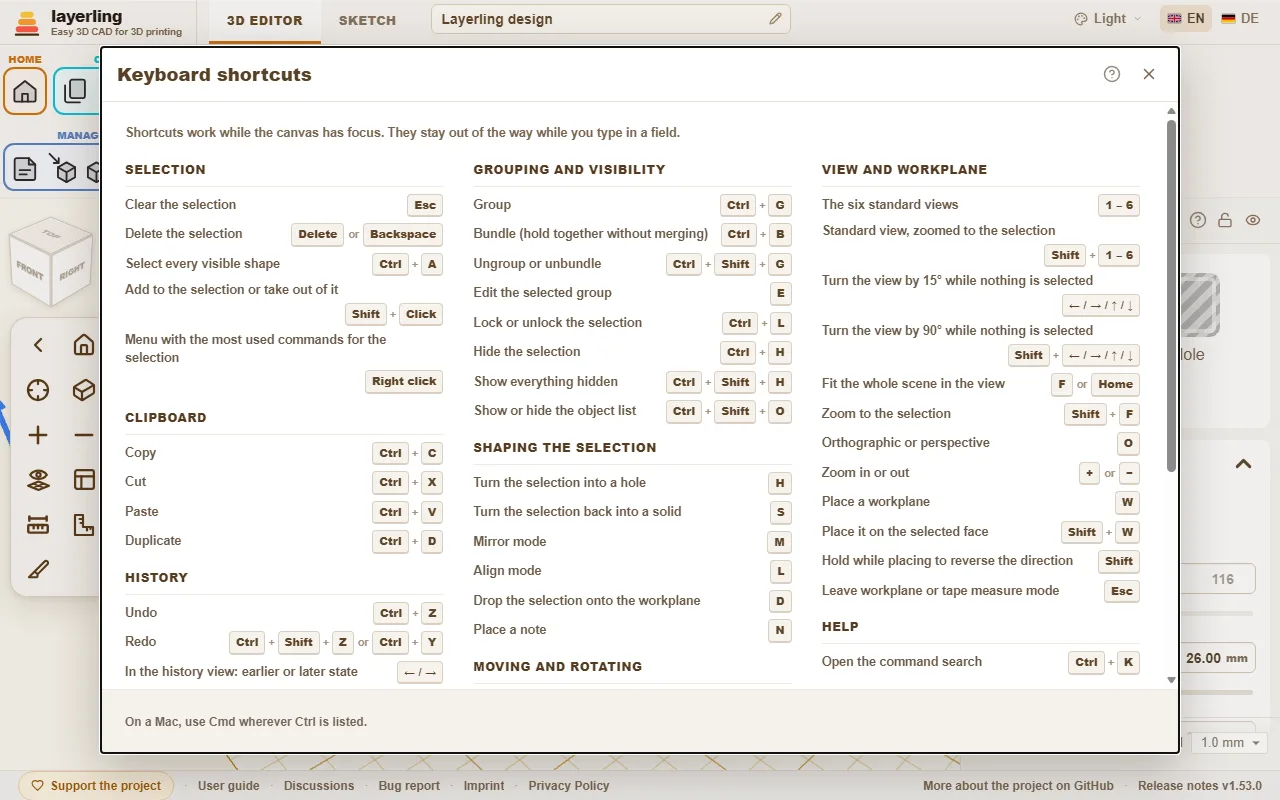
The shortcuts work as long as the workplane has the focus. While you type in a field they keep out of the way. On the Mac, Cmd applies wherever Ctrl is listed here.
In the editor, «Scorciatoie da tastiera» in the «Aiuto» area opens the same list as a window. The printer button in the window («Stampa o salva come PDF») prints the list on its own, black on white and in large type; the print dialog of the browser also offers to save it as a PDF.
Command search
Can't find a tool? Press Ctrl+K or click the magnifying glass in the «Aiuto» area, then type what you are looking for: a tool ("fillet", "mirror"), a shape ("cylinder") or a command ("export", "undo"). Move with the arrow keys and press Enter, or click the entry.
- The search understands the English and the German word alike and ignores capital letters and umlauts: "aushoehlen" finds «Svuota».
- Every entry shows the keys that do the same and the area of the toolbar it lives in, so you learn where it is.
- Entries that are greyed out cannot run right now, mostly because nothing is selected. They stay in the list so the search still tells you where the tool is.
The guide you are reading has a search box too, at the top of every page: type a word or two and it lists the sections that contain all of them, with the matching words marked. Click one, or press Enter for the first, to jump straight there.
- A shape's name adds that shape to the workplane, just like clicking it in the shapes menu.
- With an empty field the search lists the commands you used last at the top.
- The name of a body in your design finds that body and selects it, which helps in a design with many parts. Bodies only appear once you type.
- It works in sketch mode as well, with the sketch tools.
Interactive Help
Cannot find where to read about a button or a field? Let the program take you there. Click the question mark in the «Aiuto» area, or press Shift+F1. The pointer turns into a question mark, and whatever lies under it is outlined.
- Click a button, a field, a switch, a handle, a group of the ribbon or the title bar of a window. It does not do what it normally does. A small window opens instead, with the name of the element, a short summary of the part of this guide that is about it, up to two more places that mention it, and «Apri nella guida».
- The help is about the element you pointed at, not about the whole window around it. An element without a name of its own uses the nearest one around it; inside a window it falls back on that window's question mark.
- «Apri nella guida» opens the guide at that section in a new tab. There the section is outlined in colour, from its heading to its end, so you see where it starts and stops.
- If the guide says nothing about the element, the window says so and offers «Cerca nella guida».
- Esc, or the question mark again, leaves the mode. On a touch screen there is no hover: a tap on an element opens the window straight away.
The window moves by its title bar like the other windows. The program finds the section by the name of the element - the label on a button, the name of a field - because this guide writes every button as it is called in the program. It looks it up in the same search as the box at the top of each guide page, in the language you are using, and runs entirely in your browser.
Selezione
| Esc | Deseleziona tutto |
| Canc oppure Backspace | Elimina la selezione |
| Ctrl+A | Seleziona tutte le forme visibili |
| Maiusc+Clic | Aggiungi o rimuovi elementi dalla selezione |
| Clic destro | Menu con i comandi più usati per la selezione |
Appunti
| Ctrl+C | Copia |
| Ctrl+X | Taglia |
| Ctrl+V | Incolla |
| Ctrl+D | Duplica |
Cronologia
| Ctrl+Z | Annulla |
| Ctrl+Maiusc+Z oppure Ctrl+Y | Ripeti |
| ← / → | Nella cronologia: passa allo stato precedente o successivo |
| Esc | Nella cronologia: torna allo stato corrente |
File
| Ctrl+I | Apri o chiudi la finestra di importazione |
| Ctrl+E | Apri o chiudi la finestra di esportazione |
| Ctrl+S | Salva il progetto nel relativo file |
Raggruppamento e visibilità
| Ctrl+G | Raggruppa |
| Ctrl+B | Crea insieme (mantiene unite le parti senza fonderle) |
| Ctrl+Maiusc+G | Separa il gruppo o la raccolta |
| E | Modifica il gruppo selezionato |
| Ctrl+L | Blocca o sblocca la selezione |
| Ctrl+H | Nascondi la selezione |
| Ctrl+Maiusc+H | Mostra tutti gli elementi nascosti |
| Ctrl+Maiusc+O | Mostra o nascondi l'elenco degli oggetti |
Modifica della forma della selezione
| H | Trasforma la selezione in un foro |
| S | Ritrasforma la selezione in un solido |
| T | Rendi trasparente la selezione o ripristinane l'opacità |
| Maiusc+M | Multicolore per il gruppo selezionato: ogni parte con il proprio colore oppure un unico colore per tutte |
| M | Modalità specchio |
| B | Strumento di arrotondamento per il corpo selezionato (premi di nuovo per chiuderlo) |
| Maiusc+B | Strumento smusso per il corpo selezionato (premi di nuovo per chiuderlo) |
| L | Modalità allineamento |
| D | Posa la selezione sul piano di lavoro |
| C | Solleva la selezione e posala su una faccia (come Cruise in Tinkercad) |
| N | Inserisci una nota |
Spostamento e rotazione
| ← / → / ↑ / ↓ | Sposta di un passo della griglia, seguendo l'orientamento della vista |
| Maiusc+← / → / ↑ / ↓ | Sposta di cinque passi della griglia |
| Ctrl+↑ / ↓ | Solleva o abbassa la selezione |
| R | Ruota di 45° |
| Maiusc+R | Ruota di 22,5° |
| Maiusc | Tieni premuto durante il trascinamento: sposta solo lungo X o Y |
| Alt+Trascina | Trascina una copia lasciando l'originale al suo posto |
| Alt | Premi una volta durante il trascinamento per sospendere l'aggancio alle altre forme |
| Alt+Enter | Inserendo una dimensione accanto alla forma, ingrandisce dal centro anziché dal bordo opposto |
Vista e piano di lavoro
| 1 – 6 | Le sei viste standard |
| Maiusc+1 – 6 | Vista standard con zoom sulla selezione |
| ← / → / ↑ / ↓ | Ruota la vista di 15° quando non è selezionato nulla |
| Maiusc+← / → / ↑ / ↓ | Ruota la vista di 90° quando non è selezionato nulla |
| Ctrl+← / → / ↑ / ↓ | Sposta la vista quando non è selezionato nulla |
| Ctrl+Maiusc+← / → / ↑ / ↓ | Sposta la vista più lontano quando non è selezionato nulla |
| Home | Adatta l'intera scena alla vista |
| F oppure Maiusc+F | Ingrandisci la selezione |
| O | Proiezione ortogonale o prospettica |
| + oppure − | Ingrandisci o riduci |
| W | Posiziona un piano di lavoro |
| Maiusc+W | Posizionalo sulla faccia selezionata |
| Maiusc | Tieni premuto durante il posizionamento per invertire la direzione |
| Esc | Esci dalla modalità piano di lavoro o misurazione |
Guida
| Ctrl+K | Apri la ricerca comandi |
| Maiusc+F1 | Attiva o disattiva la guida interattiva |
Modalità schizzo
| Ctrl+K | Apri la ricerca comandi |
| Maiusc+F1 | Attiva o disattiva la guida interattiva |
| Esc | Termina la sequenza e deseleziona tutto |
| Canc oppure Backspace | Elimina l'elemento selezionato |
| Ctrl+C | Copia |
| Ctrl+X | Taglia |
| Ctrl+V | Incolla |
| Ctrl+D | Duplica |
| Ctrl+Z | Annulla |
| Ctrl+Maiusc+Z oppure Ctrl+Y | Ripeti |
| R | Ruota uno schizzo chiuso di 45° |
| L | Blocca o sblocca l'immagine di riferimento |
| Home | Adatta l'intero schizzo alla vista |
| F oppure Maiusc+F | Ingrandisci la selezione nello schizzo |
| + oppure − | Ingrandisci o riduci lo schizzo |
| Alt+Enter | Nel campo della lunghezza di una linea: estendi in entrambe le direzioni |
| ← / → / ↑ / ↓ oppure Maiusc+← / → / ↑ / ↓ | Sposta i punti, le linee o l'immagine selezionati di un passo della griglia (Maiusc: passo più ampio) |
| ← / → / ↑ / ↓ oppure Maiusc+← / → / ↑ / ↓ | Sposta di un passo della griglia il punto di controllo della curva selezionato (Maiusc: passo più ampio) |
| 1 oppure 2 oppure 3 oppure 4 | Scegli uno strumento di disegno: 1 Linea, 2 Curva di Bézier, 3 Curva uniforme, 4 Aggiungi o rimuovi punti (quando non stai disegnando una linea) |
| Maiusc | Durante il disegno: aggancia la nuova linea a incrementi di 15° |
| Maiusc | Durante il trascinamento: vincola lo spostamento a un solo asse |
| 0-9 oppure < oppure Tab oppure Enter | Durante il disegno: digita la lunghezza, « < » o Tab per l'angolo; Invio conferma il punto |
Smussi e raccordi
| Enter | Applica l'anteprima |
| Esc | Annulla l'anteprima |