
Text and curved lettering
Raised or engraved lettering in eight typefaces or one of your own, and if you like along a circular arc, such as on a coin, a lid or a ring.
Questo capitolo non è ancora tradotto in italiano. Segue il testo inglese.
Adding text
Choose «Testo» in the shape library and place it. In the «Testo» field on the right, type what it should say. The settings below:
- «Carattere»: Eight typefaces are available: Multilanguage, Sans, Serif, Script, Monospace, Rounded, Stencil (letters made of straight lines) and Japanese (Zen Maru Gothic). New text starts in Sans. Accented letters such as ä, ö, ü, é and the € sign are in every typeface, and so are kana, the common kanji and many of the rare ones in names such as 澤, 槇 and 檜: a Japanese name works in every typeface and on a name tag. The Japanese letters are fetched the first time a text needs them (the rare kanji in a second file, only when a text has one), so such a text shows question marks for a moment. They are kept on the computer afterwards, so Japanese also works offline from then on. Fonts of your own come on top, see Your own fonts below.
- «Dimensione delle lettere»: How big the letters are, seen from above; «Altezza» sets how thick they are.
- «Altezza»: How far the lettering stands out from the surface.
- «Smusso»: Rounds the letter edges so they look softer. With «Segmenti» you decide in how many steps.
- «Bordo delle lettere»: rounds or chamfers the top edge of the letters, as on a name tag: «Nessuno», «Arrotondato» or «Smussato», with the «Dimensione del bordo» (0.4 mm to start with, at most as high as the text). It goes further than the «Smusso», but only as far as the strokes are wide: where a stroke is thinner than twice the size, the edge ends in a narrower top. The underside stays flat, so single letters can be glued on afterwards. While an edge is chosen it takes the place of «Smusso».
- Size: You set the length and width of the line as with any shape. Drag the handles or type the dimensions.
- «Adatta le lettere alla cornice»: Off at first: the letters keep their proportions and sit in the middle of the frame, so a frame pulled wider or deeper than the word needs stays larger than the letters. Switch it on and the letters are stretched to fill the whole frame in both directions: a capital can be made lower or narrower, as in Tinkercad. It is for straight text; curved text has its own letter size.
Text is at first a single body. If you want to treat the letters individually, click «Separa le parti». Then every letter is a shape of its own.
The edges of text can be chamfered or filleted too, straight or curved, see Breaking edges and hollowing bodies. Use small sizes such as 0.2 to 0.5 mm, because the strokes of the letters are narrow.
Your own fonts
Besides the eight built-in fonts you can use any font of your own: a font file from your computer or, in Chrome and Edge, a font installed on your computer. Choose «Gestisci i tuoi caratteri …» at the bottom of «Carattere». The «I tuoi caratteri» window opens.
- «Scegli un file di carattere …» takes a TrueType file (
.ttf), an OpenType file (.otf) or a WOFF file (.woff). You can also simply drag the file into the window. - On Windows the installed fonts live in the Fonts folder (
C:\Windows\Fonts). The browser's file dialog hides it. Open it in Explorer instead and drag the font into the «I tuoi caratteri» window. Fonts installed for you alone live in%LOCALAPPDATA%\Microsoft\Windows\Fonts, which the file dialog shows too. On a Mac fonts live in/Library/Fontsand~/Library/Fonts. - «Carattere dal computer …» lists the fonts installed on your computer. The first time, the browser asks whether layerling may read them. The search field finds a font quickly, a click takes it.
If a text is selected, it gets the new font at once. Otherwise the font shows up under «Carattere» in the «I tuoi caratteri» group, and «Usa» in the window puts it on the selected texts. Fonts of your own work like the built-in ones: text on a circular arc, chamfers and fillets on the edges and the STEP export all work the same. Letters a font lacks are taken from Sans.
Arabic and Hebrew
Arabic, Persian, Urdu and Hebrew are written right to left: the first letter stands on the right, and in a mixed text such as "Name عربي" only the Arabic word runs backwards, digits stay as usual. Arabic letters join their neighbours the way the script asks, and lam-alef becomes a ligature. This needs a font that has these letters; the built-in ones do not. Add one of your own, such as Arial, Tahoma or Segoe UI on Windows, or a free one such as Noto Naskh Arabic, Noto Sans Arabic or Amiri. Vowel marks sit on the letter they belong to. Text on a circular arc, outline, silhouette, layers and name tags work with it as with any other text.
What works in which browser
| Browser | Choose a font file | Font from the computer |
|---|---|---|
| Chrome and Edge on a computer, the installed layerling app too | yes | yes, after the browser asks |
| Firefox | yes | no |
| Safari on a Mac | yes | no |
| Tablet and phone | yes, from the device's files | no |
Web pages may not simply read the installed fonts. Only Chrome and Edge have a permission for it, and only on secure pages, over https as on layerling.com. When layerling runs over http, say on your own server or as a Docker install in your home network, «Carattere dal computer …» is missing; drag the font over from Explorer then. In the other browsers you choose the font file from the fonts folder, with the same result. If you declined the question in Chrome or Edge, allow it again in the site settings, behind the padlock to the left of the address.
layerling cannot read WOFF2 files (there is almost always a TTF or OTF version), font collections (.ttc, several fonts in one file) or colour emoji fonts. From very large fonts, such as Chinese ones, layerling takes the first 8000 characters. A variable font is read in its default setting, usually the regular weight.
Some fonts, script and variable fonts above all, draw a letter from strokes that overlap. layerling merges them into one clean outline when it reads the font, so the body stays printable. Such letters are then made of very short straight pieces instead of curves; it does not show.
Where the fonts are kept
A font of your own stays in this browser on this computer. Another browser or another computer does not know it until you add it there too. Clearing the browser's site data clears the fonts as well. In the «I tuoi caratteri» window the bin removes a font from the browser. Your designs lose nothing by it, as the next section shows.
Passing on designs with a font of your own
A design does not store the font file, only the outlines of the letters its texts use, those in earlier steps of the history included. If a text says "Hello", only H, e, l and o travel with it. That holds for every way a design is saved: in the browser, on your own server, as a .lyl file and in «Forme personalizzate».
So:
- The design opens correctly anywhere, also on a computer without the font. The texts look the same and can be moved, turned, scaled and filleted.
- New letters need the font. If someone without the font types a letter the design did not bring along, layerling draws it from Sans. Under «Carattere» the font is then marked «solo le lettere del progetto». Adding the font file brings back every letter.
- Exports hold geometry only. STL, 3MF, OBJ, STEP and SVG contain bodies and outlines, no font.
- Older layerling versions do not know fonts of one's own yet and draw such texts in Multilanguage.
Licences: Fonts are protected by copyright, and their licence says what you may do with them. The embedded letter outlines are what PDF files take along from a font, and most licences allow that. Some commercial fonts, though, forbid passing on even single letters. Before you pass on or publish a design with a font of your own, check the font's licence. Free fonts such as those from Google Fonts (mostly under the SIL Open Font License) can be passed on without worry. For a printed part or an exported STL it does not matter: they hold no font any more, only geometry.
Raised or engraved
- Raised: Place the text on the surface and group it with the body. It grows out as a relief.
- Engraved: Switch the text to «Foro», let it reach a little into the surface and group it with the body. The letters are then engraved.
For lettering on a side face, first put the workplane on that face, see View and workplane.
Outline, silhouette and wider
A text need not be built as filled letters. «Riempimento» in the properties offers the same choice as Tinkercad:
- «Pieno»: the letters as they are.
- «Contorno»: a line along the outline of the letters, half inside and half outside it.
- «Linea esterna»: a line round the outside of the letters.
- «Linea interna»: a line on the inside of the letters.
With a line chosen, two settings appear right under the list: «Spessore della linea» sets how thick the line is, «Angoli» how it goes round the corners («Arrotondati», «Smussati» or «A punta»). The rarer settings are under «Altro»: «Silhouette (senza fori)» leaves out the holes in O, A or e, and «Allargamento (base per stampa multicolore)» keeps the letters filled and makes them thicker by the line width all round; letters that touch grow into one piece.
With a line outside, a centred line or "Wider" the box of the text grows, while the letters keep their size. «Smusso» and «Segmenti» exist for filled letters only.
Layers and name tags
A name tag for a multicolour print is a text in layers: the letters on top, under them the same text a little wider in a second colour, at the bottom a plate without holes in a third. layerling makes it in one click:
- A new name tag: choose «Targhetta identificativa» in the shape library and place it. It says "Name" in white letters on a red rim and a dark plate.
- From a text: select the text and click «Crea strati» at the top of its settings.
All settings of the tag are in the card «Targhetta identificativa», at the top of the settings:
- «Testo» and «Carattere», fonts of your own too. The tag grows with the words.
- «Dimensione delle lettere»: how tall the capital letters are, in mm. All layers follow and stay lined up.
- «Strati»: one row per layer, from the top down. Each row has the colour (click the coloured square), how much wider the layer is than the letters, its height and «Senza fori», which fills the holes in letters such as O and A. «Angoli» sets how a wider layer goes round the corners of the letters: «Arrotondati», «Smussati» or «Vivi». The top row is the letters themselves. + adds a layer at the bottom, – takes the bottom layer away. A tag has two to six layers.
- «Foro per portachiavi»: gives the bottom layer a straight tab with a round end and a hole for a key ring; the tab grows with the hole. A 3 mm hole, the default, makes a tab 6.5 mm wide that sticks out 6.75 mm, the hole's edge 2 mm from the edge of the bottom layer. Choose the «Diametro del foro» and the «Lato»: «Sinistra», «Destra» or «Alto». The hole goes through every layer it touches, and the tab moves along when you change the words, the letter size or the font.
- «Bordo delle lettere»: rounds or chamfers the top edge of the letters on the top layer, the way a printed tag is finished: «Nessuno», «Arrotondato» or «Smussato», with the «Dimensione del bordo» (0.4 mm to start with, at most as high as the layer). It works for every font and word. The edge is part of the letters' mesh, so the edge tool takes such a text as a mesh, which for a text this fine is heavy; pick the edge here instead.
Every change shows at once. The tag is a bundle: it moves as one, and each layer stays a body of its own in its own colour, the way a slicer needs them for a multicolour print. To round or bevel the edges of one layer, click «Modifica insieme» and pick the layer, see Breaking edges and hollowing bodies.
Many name tags at once
Type the names into «Elenco dei nomi», one per line, up to a hundred. The button below says how many tags it will make, for example "Make 12 name tags". Every tag gets the same layers, letter size and key ring hole and is an object of its own; they are laid out in rows below the first, 5 mm apart. A plain text has the name list too, further down in its settings.
Icon tags
An icon tag is the same tag with an SVG icon instead of letters: a heart, a cloud, a club's logo. The icon on top, under it the same outline a little wider in a second colour, at the bottom a plate without holes.
- A new icon tag: choose «Targhetta con icona» in the shape library. A small window opens: click «Sfoglia…», pick an SVG, PNG or JPG file, check the picture, type the «Larghezza (mm)» of the icon and click «OK». The tag stands in the middle of the plate, in the same layers as a new name tag.
- From a sketch body: an imported SVG, or a sketch you drew, has «Crea strati» at the top of its settings.
The card «Targhetta con icona» at the top of the settings holds:
- «Un altro file…»: puts the icon of another file (SVG, PNG or JPG) on the tag; the layers and the width stay as they are.
- «Larghezza»: how wide the icon on top is, in mm. All layers follow and stay lined up.
- «Strati»: the rows as on a name tag - colour, how much wider, «Angoli», height and «Senza fori», + and –, two to six layers. The top row is the icon itself.
- «Foro per portachiavi»: as on a name tag: a hole for a key ring through every layer, with a tab with a round end on the bottom layer, beyond the icon. «Diametro del foro» and «Lato» choose its size and where it sits. The tab is made for the outline of the icon, so on a very ragged icon check where it meets the plate.
- «Quantità»: how many tags you want, 1 to 100. «Il massimo numero possibile» works it out from the plate of the printer chosen in the settings, for small logos a full plate. The button below makes them, 5 mm apart, laid out on the middle of the plate; the first is the tag itself.
The SVG needs closed outlines; a drawing of open lines only cannot become a tag. A sketch body whose fill is a line keeps it: the area of that line is the icon.
A picture (PNG or JPG) is traced into an outline, and the preview shows the outline. Under «Tracciato da» you choose whether the «Parte scura» or the «Parte chiara» becomes the icon; at first it is the part that is not the background. Transparent pixels never belong to the icon. An SVG that holds nothing but one picture, as Inkscape saves an imported bitmap, is traced the same way. The outline follows the pixels, so a small picture gives a rough edge: pictures of a few hundred pixels or more work best. «Un altro file…» takes the part of a picture that is not its background.
QR codes
A QR code turns a text or a web address into a pattern a phone camera reads: a link to your shop on a sign, the Wi-Fi name on a coaster, a phone number on a key tag.
Choose «Codice QR» in the shape library. A window opens; the cursor is already in the text field:
- «Testo o indirizzo»: what the code says. Enter makes the code, Shift+Enter starts a new line. Below the field you see how much of the room is used; umlauts and other special letters take two bytes. When the text is too long, the field says so.
- «Correzione d'errore»: L, M, Q or H. A higher level can still be read when part of the code is dirty or scratched (L about 7 %, M 15 %, Q 25 %, H 30 %), but needs more modules for the same text, so each module gets smaller. M is chosen at first.
- «Costruisci come»: «Solo codice» makes the code alone, 4 mm high. «In rilievo su piastra» puts it 1 mm high on a white plate 3 mm thick, as a bundle of two colours, so a multicolour print prints the code dark and the plate light. «Inciso» cuts the code 1 mm deep into the plate.
- «Dimensione per»: type the «Larghezza» of the whole code (40 mm at first) or the size of one module; the other number is shown below. Modules under 0.8 mm get a warning. That is a rule of thumb for a 0.4 mm nozzle, not a guarantee: printer, material, colours and the phone all play a part.
- «Zona di rispetto (4 moduli)»: scanners need an empty rim four modules wide round the code. On a plate the rim is part of the plate; switch it off only if the plate sits on a larger light surface. The code alone has no rim of its own: leave the room free round it.
- Heights: the height of the code, or on a plate the code height or engraving depth, and the plate thickness.
The preview shows the code as it will be built. «OK» puts it in the middle of the plate.
The code is a body like any other: move it, turn it, scale it (keep width and depth the same, or the code is stretched), group it, or make it a hole and group it into a part of your own to engrave it there. Scaling it scales the whole code; each module stays square.
The card «Codice QR» at the top of its settings holds the text. Change it and click «Ricrea»: the code is built again where it stands and as wide as it is now. Error correction, quiet zone and build stay as they were chosen; for other choices make a new code from the library.
Scan the code with your phone before you print it, and once more after printing. Dark on light reads best; a light code on a dark plate is not read by every phone.
Text on a circular arc
Should the lettering not run straight but follow the edge of a coin, a lid or a ring? For that there is the setting «Su arco».
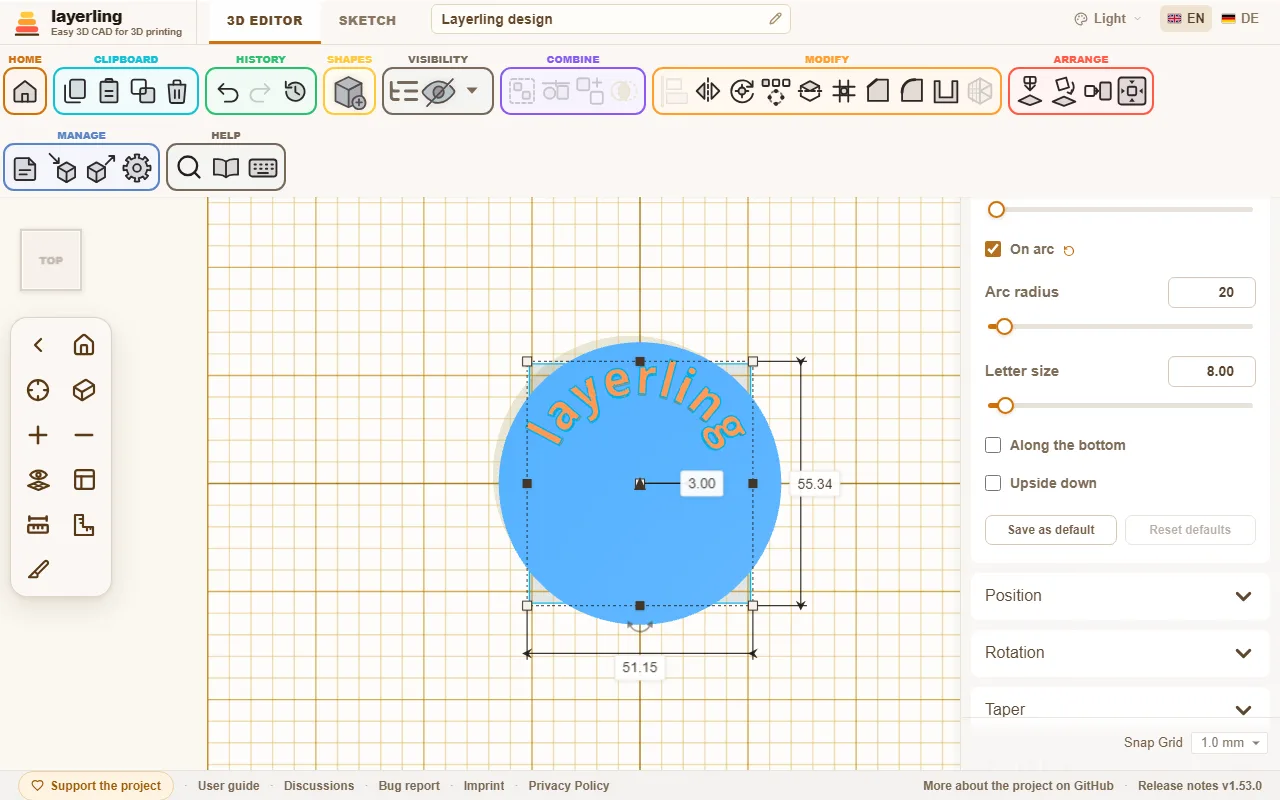
Once you switch it on, the text runs along the circle. All letters stand on the same baseline, as evenly as with normal text. There are four settings:
- «Raggio dell'arco» (5 to 500 mm): The radius of the circle the letters' baseline runs on.
- «Dimensione delle lettere»: How tall the letters are. It no longer depends on the width of the shape.
- «Lungo il bordo inferiore»: Moves the text from the top of the circle to its bottom. The letters then point with their heads to the centre.
- «Capovolto»: Turns only the letters over so you can read them from the other side. The text stays in its place on the circle.
The centre of the circle is the centre of the shape. That is why aligning works as usual: if you centre the text with a cylinder or ring, it sits exactly concentric on it. When you pull a handle, radius and letter size grow together, so the lettering is not distorted.