
Getting started
From a blank sheet to your first part for the 3D printer, in five minutes, with no account and nothing to install.
Questo capitolo non è ancora tradotto in italiano. Segue il testo inglese.
layerling is a design program for 3D printing that runs right in your browser. You build a part from simple shapes, cut holes into it, round the edges and send it to your slicer. There is nothing to install and nothing to sign up for. What you build stays on your computer.
Creating a design
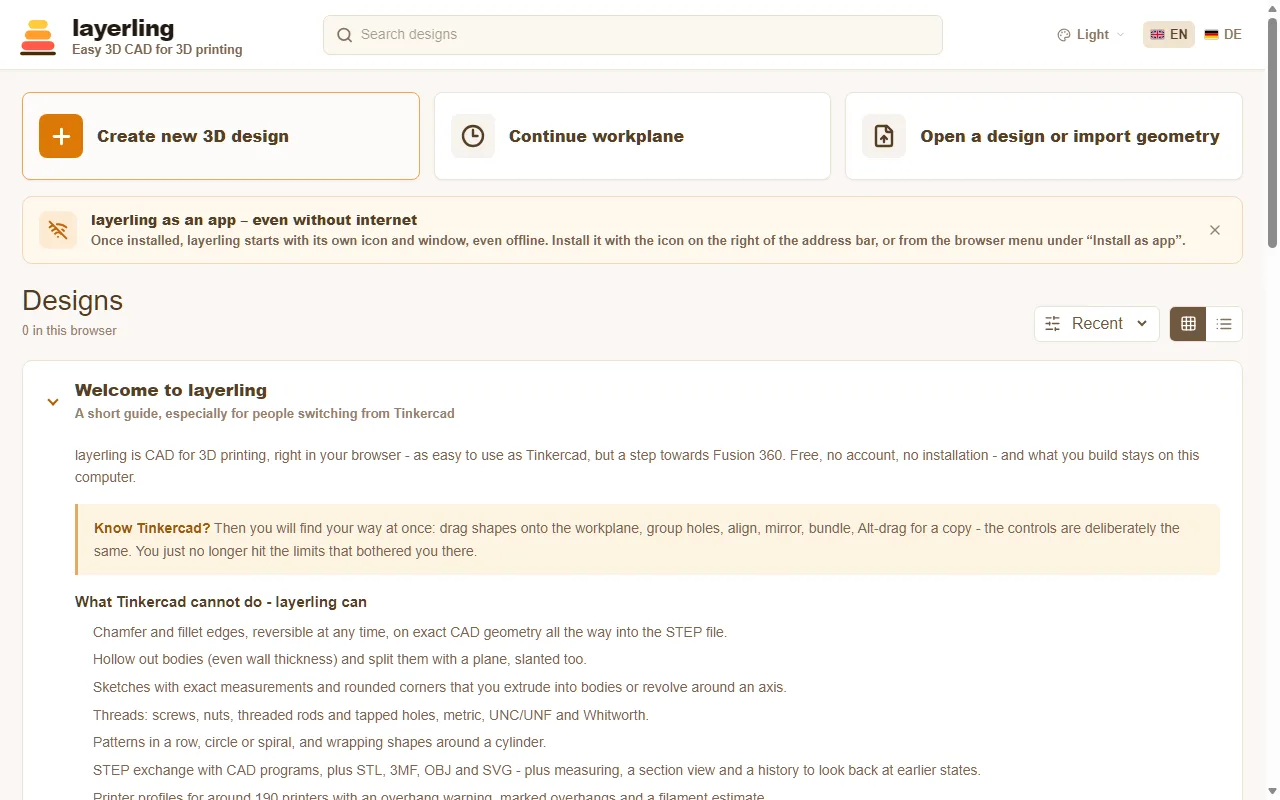
Open layerling.com. On the start page click «Crea un nuovo progetto 3D». The editor opens with an empty workplane, the grid on which everything takes shape.
If you already have a file to continue with, use «Apri un progetto o importa una geometria». That works for layerling designs (.lyl) as well as STL, OBJ, 3MF, STEP or SVG files.
All your designs later appear on the start page with a preview picture. They are kept in your browser's storage and saved automatically after every change, so there is no save button. layerling takes no responsibility for designs kept in the browser. A browser can fail, or a browser update can cause problems, so back up your designs from time to time with «Crea un backup di sicurezza di tutti» on the start page, or save them as files. A backup comes back with «Ripristina backup». How to pack designs into a file and pass them on is covered in Files and saving.
The editor at a glance
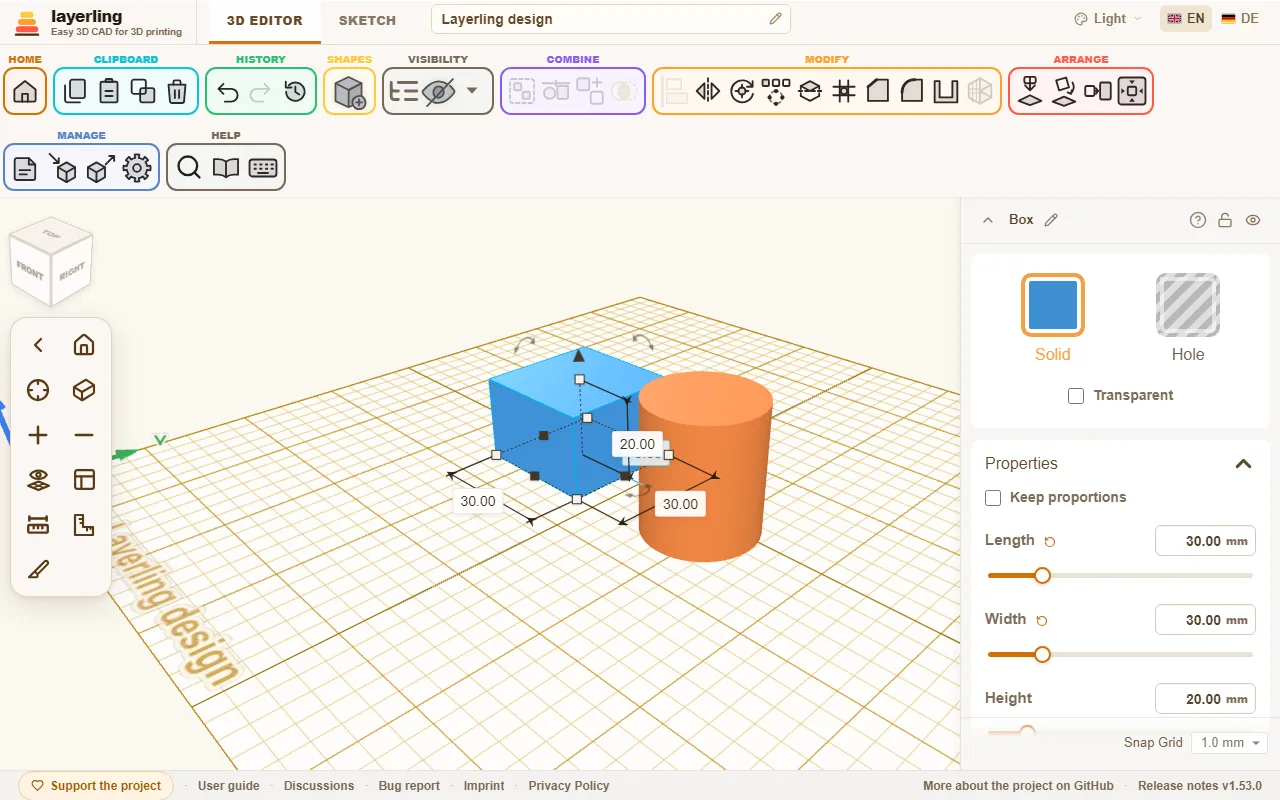
- On top is the ribbon. It is sorted by task: «Appunti», «Cronologia», «Forme», «Visibilità», «Combina», «Modifica», «Disponi», «Gestisci» and «Aiuto». Hover over an icon to see its name. Wherever you see a small question mark, for example in a shape's settings, in the shape library or in the tool panels, it leads straight to the matching chapter of this guide.
- In the middle lies the workplane. This is where you place shapes, pull them into form and see the result.
- On the right appear the settings of the selected shape: colour, dimensions, position and whatever else makes up the shape. Typing numbers is more exact than dragging.
- On the left are the camera controls with the view cube above them. They move you around the scene, more in View and workplane.
- At the very top you switch between «Editor 3D» and «Schizzo», rename the design and choose language and colour scheme.
The buttons around the work area
Hover over a button to see its name. If you are not sure what a button does, click «Guida interattiva» in the «Aiuto» area (Shift+F1) and then the button. These are the ones asked about most.
Paste
«Incolla» (Ctrl+V) adds what you copied with «Copia» to the design. «Duplica» copies and pastes in one step.
Delete
«Elimina» (Delete) removes the selected shapes. «Annulla» brings them back.
Ungroup
«Separa gruppo» (Ctrl+Shift+G) takes the selected group apart again into the shapes it was made of.
Workspace settings
«Impostazioni dell'area di lavoro» opens the settings of the work area: unit, size of the plate, printer, grid, colours, light and more. More in View and workplane.
Theme
«Tema» at the very top chooses how layerling looks: as your system, light, dark or graphite.
Rename design
«Rinomina progetto»: the pencil beside the name at the very top. Type the new name and press Enter.
Design name
The name of the design («Nome progetto») stands at the very top. Click it, type, and Enter keeps the name.
Visibility options
«Opzioni di visibilità», the arrow beside the eye icon, holds what you can show or hide: the list of objects, everything you hid, the notes and the overhangs of the print. More in Select and arrange.
Hide selected
«Nascondi selezione» (Ctrl+H) hides the selected shapes. They stay in the design and in the object list; «Opzioni di visibilità» shows them again.
Search commands
«Cerca comandi (Ctrl+K)»: type what you look for, a tool, a shape or a setting, and click the result.
Hide camera controls
«Nascondi i controlli della telecamera» folds the camera controls on the left away and gives the work area more room; «Mostra i controlli della telecamera» brings them back.
Snap Grid
«Aggancio alla griglia», at the bottom of the properties, is the step that moving and resizing snaps to. Beside it the small switch mm | in changes the unit. More in View and workplane.
Unit: millimetres or inches
The switch mm | in beside «Aggancio alla griglia» changes the unit, the plate's grid and the snap step, for this design.
The footer
At the foot of the window: «Sostieni il progetto» leads to the page where you can support the project; «Guida utente» opens this guide; «Discussioni» leads to the place for questions, ideas and bug reports (the discussions on GitHub, in German the forum of drucktipps3d); «Segnalazione di bug» makes a ZIP for a bug report; «Scopri di più sul progetto su GitHub» leads to the project on GitHub, and the version number opens the release notes. The links to the imprint and the privacy policy belong to whoever runs the copy of layerling you use.
Your first part
As an example, we build a cube with a hole.
- Click «Aggiungi forma» in the ribbon and pick «Parallelepipedo». The shape now hangs on your mouse pointer. A click on the workplane sets it down.
- On the right, set the dimensions, for example 40 mm long, 40 mm wide and 20 mm high.
- Place a «Cilindro» in the middle the same way, 14 mm across and 30 mm high. It should be taller than the cube so it reaches all the way through.
- Select the cylinder and click «Foro» on the right. It turns see-through: the solid has become a tool that takes material away.
- Select both shapes and click «Raggruppa». The cube now has a hole.
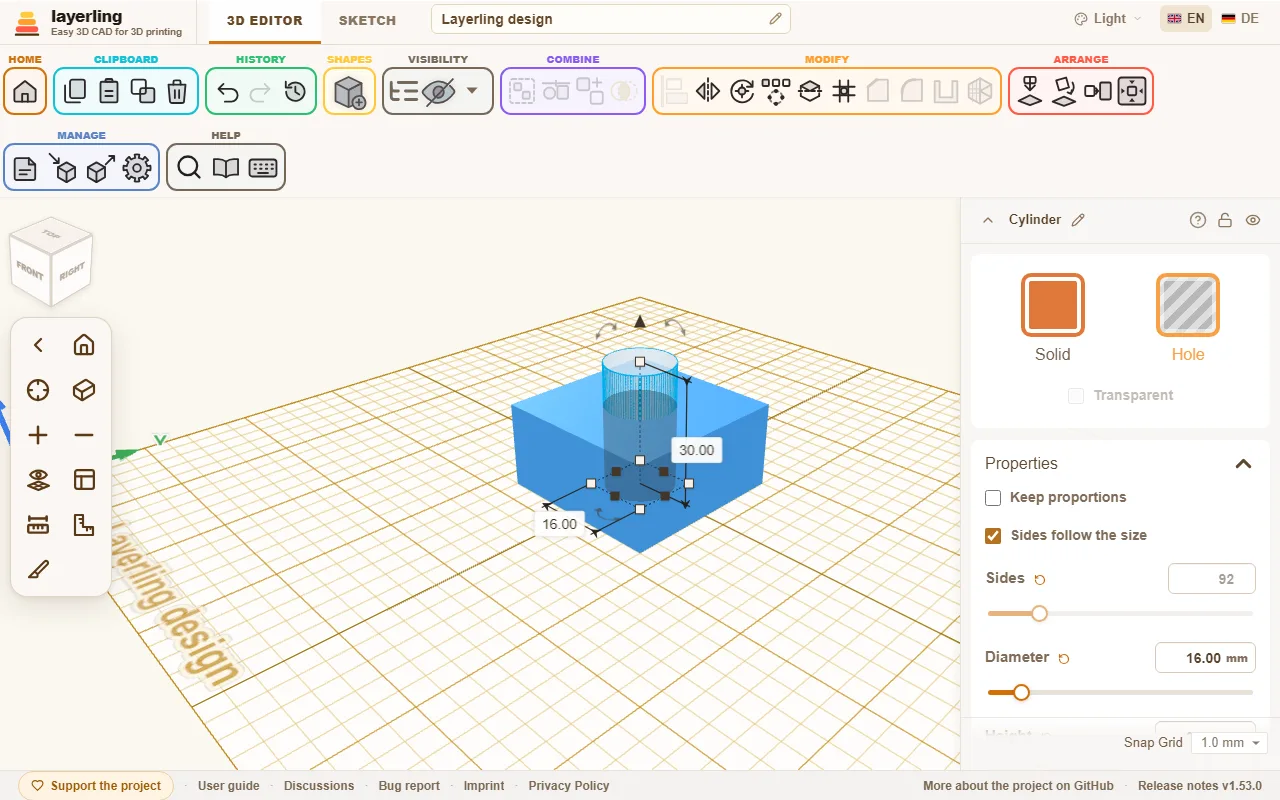
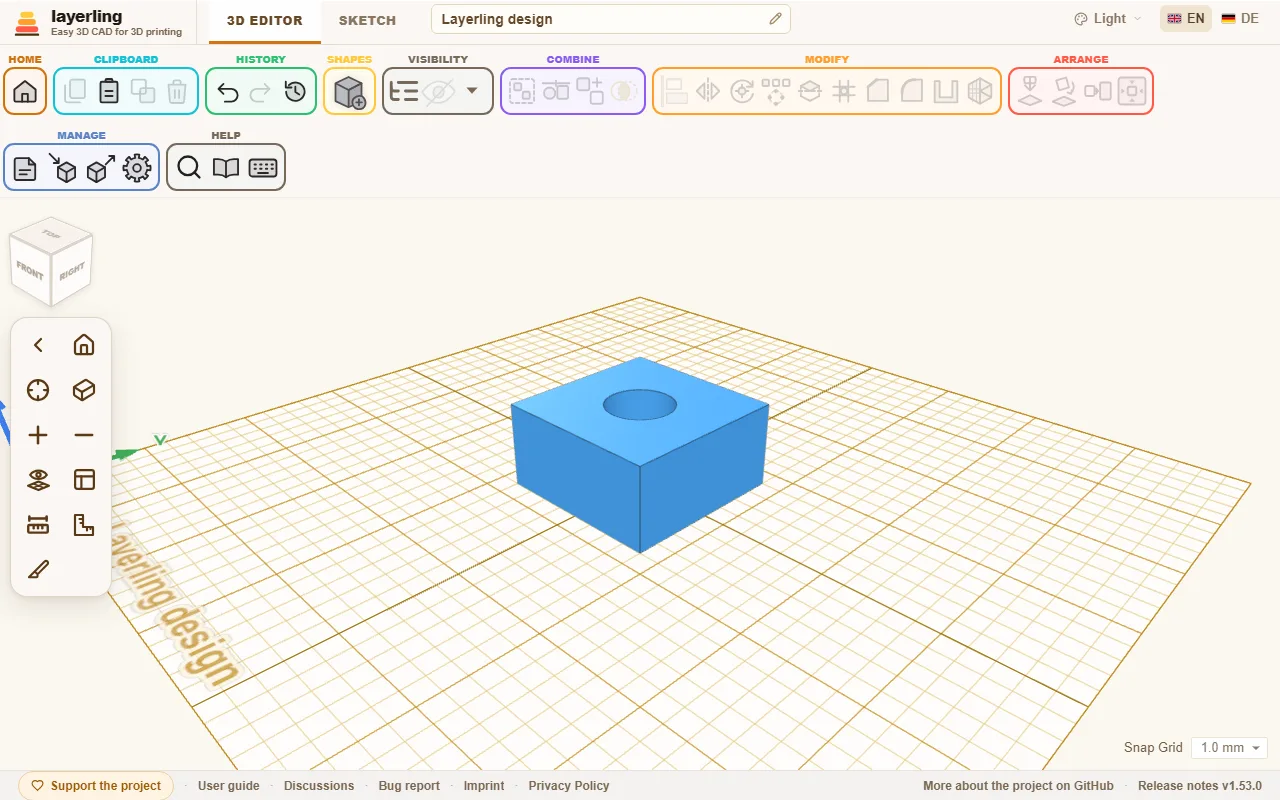
This is how bores, slots and pockets are made. The chapter Solids and holes explains it in detail.
New since your last visit
When you open layerling again after an update, a card on the start page lists what has been added since you were last here: every version since then, the newest first. After a long absence you scroll down inside the card. Below them, «Mostra le versioni precedenti» adds the versions from before your last visit too. Close it with «Ho capito» and it stays away until the next update. «Novità» in the footer of the start page shows the latest additions again at any time. The browser remembers the last version you saw, and nothing about you leaves it.
On a copy of layerling on your own computer or server, the notice "Update available" has a button, «Anteprima: quali novità porta l'aggiornamento?», that lists what the update brings before you install it. The list is fetched from GitHub only when you press the button.
From design to print
When your part is done, click «Esporta», choose STL or 3MF and download the file. Open it in your slicer, for example Bambu Studio, PrusaSlicer, OrcaSlicer or Cura. If you choose your printer in the settings, you can see while building whether the part fits on the print bed. More in Printing.