
View and workplane
Moving around the scene, looking straight on, and placing new shapes on any surface you like.
Questo capitolo non è ancora tradotto in italiano. Segue il testo inglese.
Moving around
With the mouse:
| What you do | What happens |
|---|---|
| drag with the right button | rotate the view |
| click the right button | on a body, a menu with the most used commands: duplicate, hole or solid, group, hide, lock, delete and more; on empty space Paste and Select all |
| drag with the middle button | move the view |
| mouse wheel | zoom in and out |
| hold Ctrl and drag with the left button | also moves the view |
How fast the wheel zooms is set with «Velocità dello zoom» in the settings, under «Aspetto»: a slider from 1 to 14, 5 to begin with; above 10 only the wheel gets faster. One notch of a mouse wheel zooms alike in every browser, a trackpad zooms with how far you stroke.
On a tablet or phone, two fingers zoom (spread and pinch) and move the view (slide together). One finger on empty space turns the view, and a tap there clears the selection; on a shape or a handle it works on the design, just like the left mouse button. To turn the view with a finger that starts on a shape too, switch on «Ruota la vista con un dito» in the camera bar. That switch shows on devices with a touch screen.
A graphics tablet with a pen behaves like a mouse: the tip is the left button, the barrel button on the pen the right one, for turning the view and for the menu. The tablet's hotkeys can be set in its driver to layerling's keyboard shortcuts.
On a tablet, work with a stylus if you can. Its tip is far finer than a fingertip and does not cover what you aim at, so small points, thin lines and handles in a sketch, measuring points and edges are hit exactly, and longer work is less tiring. layerling already lets a finger reach a little further to points, lines, handles and edges than a mouse pointer does, but a stylus remains the more precise way. This holds for a pen that the tablet knows as a pen (an S Pen, an Apple Pencil and the like). A plain stylus with a rubber tip counts as a finger for the screen and is not finer than one.
There is no right mouse button on a tablet: hold a finger still on a shape or on empty space for half a second, and the menu opens that a right click opens, with Select all on empty space. Select multiple in the same menu stands in for Shift on a tablet: each tap on a body then adds it to the selection or takes it out again, until you tap empty space or press Esc; a finger on empty space still turns the view. The handles around a selected shape can be caught by a finger from a little beside them.
The view cube
The cube in the top left shows where you are looking. A click on one of its sides jumps to the straight view from top, bottom, front, back, left or right. A click on a corner of the cube looks at the model diagonally from that corner, and a click near an edge looks from that edge, between two sides; the spot lights up while the pointer is on it. The number keys 1 to 6 give the straight views too. Hold Shift with them and the view also zooms to the selection, as Shift+F does.
Drag the cube to turn the view around, just like dragging with the right mouse button. With nothing selected, the arrow keys turn the view as well: 15° a press, 90° with Shift. They turn the model the way they point - → turns its front to the right, ↑ tilts its front upwards. With Ctrl held, the arrows slide the view across the screen instead: a tenth of the picture a press, half of it with Shift as well. The model moves the way they point. If something is selected, the arrows move it; click on empty space first to turn the view. On a touch screen this works with one finger, without switching on «Ruota la vista con un dito».
The camera bar
At the left edge is a narrow bar. From the top:
- «Vista iniziale» brings the whole scene back into view. The key is Home; F does it too when nothing is selected.
- «Centra la vista sulla selezione» zooms to the selection (F or Shift+F).
- «Ingrandisci» and «Riduci» zoom step by step, as do the keys + and −.
- «Vista ortogonale» switches to a flat view in which parallel edges stay parallel. For measuring and lining up edges that is often more comfortable than the perspective view. O switches back and forth, and a second click returns.
- «Nascondi il piano di lavoro» (the eye over a grid) hides the plate with its grid, so you can look at the underside of a design from below. Only the view changes: new shapes still land on the workplane. A second click shows it again.
- «Posiziona il piano di lavoro», the tape measure and the framing square are tools of their own, covered below and in Measuring and notes.
The small arrow at the very top of the bar hides it if it gets in the way.
A design opens the way you left it: the angle, zoom and position of the view are kept with it in this browser, so you continue where you stopped, also after going Home or closing the page. A saved file (.lyl) carries the view along, so it opens in it elsewhere too. The view is not part of the undo history.
Looking inside: the section view
«Vista in sezione», the last button in the bar (the cut tool), cuts the view open along a plane so you can check walls, cavities and parts that fit into each other. Nothing is cut for real: the design, its files and every export stay whole. Where the plane goes through a solid, the cut is filled with the colour of the body a little darker, and a hole inside it stays empty, so you can tell solid from hollow; the filled face appears a moment after the plane stops moving.
- Choose the axis the plane stands across: X (width), Y (depth) or Z (height), as in the position fields. The plane starts in the middle of your design.
- «Grossolana» moves the plane across the whole design, «Fine» moves it a little either side of where it stands, for tenths of a millimetre. You can also type the position.
- The button beside the axes shows the other side of the cut, «Centra» puts the plane back in the middle, and «Mostra il piano di taglio» hides the blue plane.
- You can click and select what the cut lays open, inner walls included.
- «Piano di lavoro qui» puts the workplane on the cut. It lies on the plane of the section and faces out of the body that stays, like the face a cut leaves. If you then switch to the sketch, it starts exactly there, and the faint outline shows the cut, which you can draw along and snap to. That is how you sketch a lid that fits the cavity you opened with the section, for example. The button beside the axes chooses which side stays, and with it which way the workplane faces. You put the workplane back on the base plate as usual.
- «Misura» measures right on the cut: the outline shows in blue, and two clicks on it give the distance, plus its parts along the plane's two axes. Both points snap to the outline, corners first. When the second click lands anywhere on the opposite wall, it snaps square to the first point - so you read wall thickness, gaps and clearance without aiming exactly. A third click starts the next measurement, Esc ends measuring. Moving the plane clears the measurement. On a round outline, such as the cut through a cylinder or a hole, a small cross marks the centre and the centre snaps too. Click a point on the circle, then go near the point across from it: the second click lands exactly across the centre, and the number reads Ø, the diameter. From the centre to a point on the circle you get R, the radius.
- «Esporta la sezione come SVG» saves the outlines on the cutting plane as an SVG at 1:1, for a laser, a plotter, a template or a gasket. An X cut is seen from the right, a Y cut from the front, a Z cut from above. As in the export, only visible bodies go in, holes are already taken off, and bodies of the same colour are joined into one outline. Each colour stays its own path without a fill, so laser software keeps them apart as layers.
The panel hangs on its button. If it covers something, drag it by its title bar anywhere on the workplane; it opens there next time too. Double-click the title bar or drop it at the button to put it back.
The X and Esc close the panel; with a measuring running, Esc ends it first. The cut stays until you switch it off with «Sezione attiva» or go back to the design overview. While it is on, its button stays highlighted. Anything you place on the side that is cut away only shows once you switch the cut off. A tablet has no Esc, so there the panel has two more buttons: «Indietro» ends the measuring if one is running and otherwise closes the panel, and «Conferma» closes the panel in one step. A computer does not show them.
The workplane
New shapes align with the workplane. At first that is the base plate with the grid. But you can put it on any surface, to place something on a side or a sloped face.
- Press W or click «Posiziona il piano di lavoro».
- Move the mouse over a face of a body. It lights up.
- A click puts the workplane there. Everything you add now sits on that face.
Click on the empty plate instead, and the workplane lies flat at the spot you clicked, on the snap grid. New shapes and a finished sketch, a revolved one too, then appear there rather than in the middle of the plate. While the workplane lies flat on the plate like this, the plate shows only its outline: two grids in the same plane would make a flickering pattern.
On a face the origin of the workplane otherwise snaps to the grid. Click close to a corner of the face and it sits exactly on that corner. Close to an edge it lies on the edge, and the grid lines up with it; that is how you choose the angle of the grid on purpose. Without a corner or an edge, the grid on a lying face runs parallel to the body, so on a turned box it is turned with it.
A click beside the plate or Esc returns the workplane to the base plate. Quicker still is «Riporta il piano di lavoro sulla piastra di base»: the button with the downward arrow sits in the camera bar below the eye while the workplane lies on a face. Shift+W puts it directly on the currently selected face. If you hold Shift while clicking, the plane points the other way.
While a workplane sits on a face, an eye appears next to «Posiziona il piano di lavoro». It hides the workplane without dropping it, for a clear look at the design: new shapes still land on that face, and rotating still turns about it. A click on the eye shows it again, and so does setting a new workplane.
Grid and snapping
The grid shows the size of the plate. At the bottom right is the snap step: moving and scaling snap in steps of that size, for example 1 mm. Make it smaller for fine work and larger for rough arranging. «Aggancia alla griglia» in the ribbon moves the selected shapes afterwards onto the nearest grid crossing. While moving, shapes also snap to other shapes, see Selecting and arranging.
Under «Misurazione» in the settings you set the «Unità». With «Imperiale», layerling shows every measure in inches, on the shape, in the properties panel, on the tape measure and the ruler. The snap grid then offers steps from 1/64 to 1 inch, and the grid on the plate is drawn in inches (1/8 to 1 inch, 1/4 inch by default) with a stronger line on every whole inch. Under «Mostra i pollici come» you choose whether inches appear as fractions like in Tinkercad (1 5/8, rounded to 1/64 inch) or as decimals (1.625) with as many decimal places as set under «Precisione». You can type either, "1 5/8" included. A quick way between millimetres and inches is the small switch mm | in beside the «Aggancio alla griglia» at the bottom of the properties window: it changes the unit, the plate's grid and the snap step as the settings do, for this design.
Under «Griglie di aggancio personalizzate» in the same place you add snap steps of your own: a name and a size in millimetres, for example "Pin pitch 2.54 mm" for the spacing of DIP chips, pin headers and perfboard holes, or "MX Key Unit" with 19.05 mm for the spacing of keyboard keys. The snap step menu then offers that measure whole, halved and quartered (1 ×, ½ × and ¼ ×), so shapes can be moved by one pitch, half a pitch or a quarter pitch. If you want just the measure itself, untick «Anche metà e un quarto» beside it; the menu then has only that one step. Custom steps are kept with the design and go along with «Imposta come predefinito».
Size, grid width and colour of the plate are changed in the settings (the cogwheel in the ribbon): the areas are «Aspetto», «Misurazione», «Piano di lavoro», «Valori predefiniti delle forme» and «Cronologia». Under «Aspetto» you find switches such as «Avvia l'editor in vista prospettica» and «Mostra le ombre», under «Piano di lavoro» «Mostra la griglia». The colours of the work area are set under «Aspetto» too: «Sfondo della finestra (tema chiaro)» and «Superficie del piano di lavoro sotto la griglia (tema chiaro)» for the light theme (the dark themes keep their own), next to the grid colour under «Piano di lavoro». There you also choose whether the darker grid line comes every 5 or every 10 grid steps («Linea della griglia più scura ogni») and give it a colour of its own with «Colore delle linee più scure»; the centre cross and the plate border take it too. Every line of the grid grows wider as you zoom in, as in Tinkercad, and stays visible as you zoom out; if that is too much for you, switch off «Le linee della griglia si ingrandiscono con lo zoom» and the lines stay one pixel wide at every zoom, as in the sketch. In the colour field, Enter takes a typed hex value. «Linee dei bordi su tutti i corpi» draws an outline on every body, in the colour of «Colore delle linee dei bordi» (black to begin with, as in Tinkercad): it helps when dark colours run into each other. It is off by default, and very large imported meshes are left out. The grid always runs through the origin, so the stronger lines lie on the axes whatever the plate measures. If the grid has disappeared, say because a colour was set to that of the plate, «Ripristina la griglia» at the end of the «Piano di lavoro» area brings its visibility, colours, spacing and line weight back to the standard, here and in the default saved with «Imposta come predefinito».
«Frecce degli assi» (on by default) draws three arrows at the back left corner of the plate: X in red to the right, Y in green to the back and Z in blue upwards, the way the position fields count. That is the right-hand rule Tinkercad, CAD programs and the slicers use too. With the workplane on a face they follow it. Switch them off here if they are in your way.
Two sliders under «Aspetto» set how the bodies are lit. «Intensità delle ombre» says how dark the cast shadows are, and «Contrasto delle ombreggiature» moves light from the even ambient light to the main light: towards "punchy" the shaded sides get darker and the shadows show more, towards "soft" everything gets flatter. At the top end the contrast gets very strong, so shaded sides and shadows turn really dark. «Morbidezza delle ombre» makes the edges of the shadows soft instead of crisp. «Direzione della luce» turns the main light round the plate (0° from the front, 90° from the right), and «Altezza della luce» lifts it; at 90° it stands straight above the plate as in Tinkercad, and the shadows fall right under the bodies. «Ripristina luce e ombre» puts everything back. «Aspetto classico» sets the work area up as Tinkercad shows it: white ground, a pale blue millimetre grid with a darker line every centimetre, black edge lines, light from above with soft shadows. Every value can still be changed on its own afterwards. All of them start as layerling always looked, and what suits you depends on your monitor. The sketch view has its own colours: «Schizzo: sfondo della finestra (tema chiaro)» for the window round the sheet, «Schizzo: colore della superficie sotto la griglia (tema chiaro)» for the sheet under the grid, and «Schizzo: colore della griglia (tema chiaro)», all for the light theme. «Schizzo come area di lavoro» takes over the work area's three colours in one click.
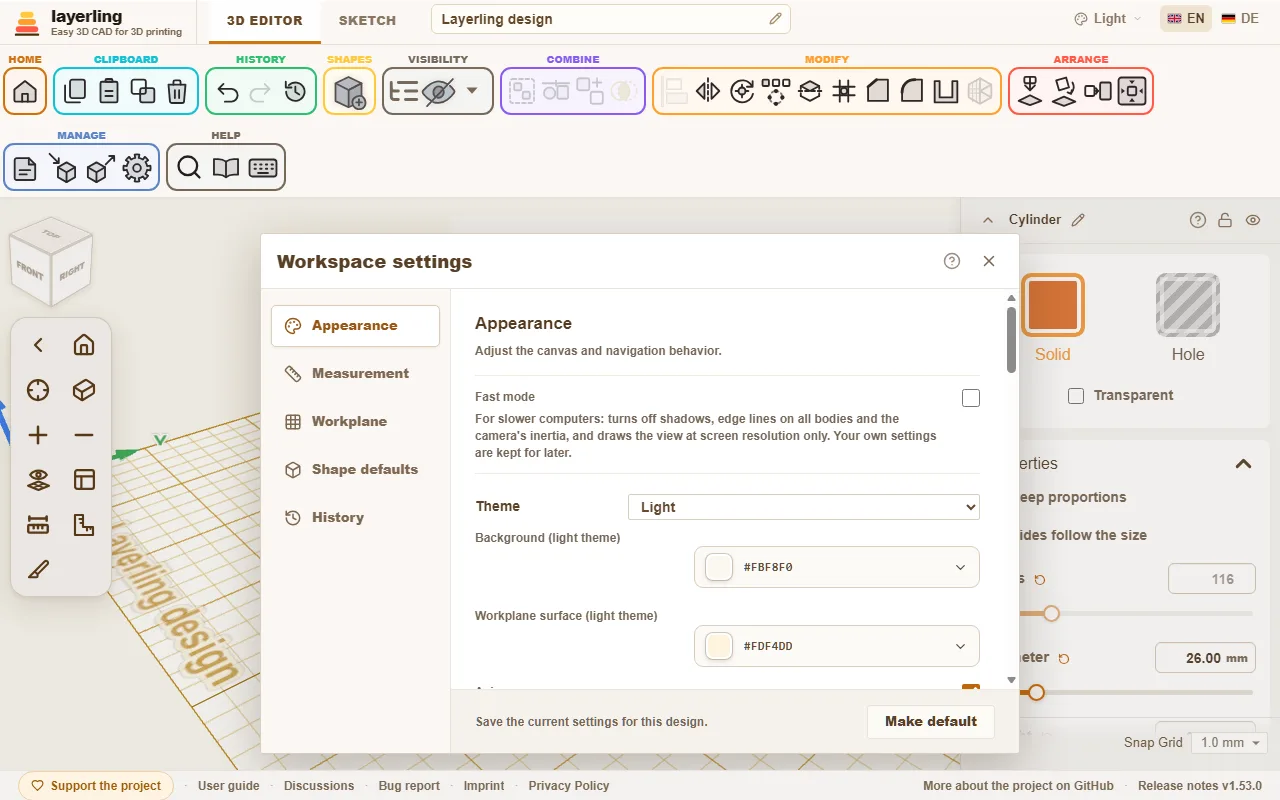
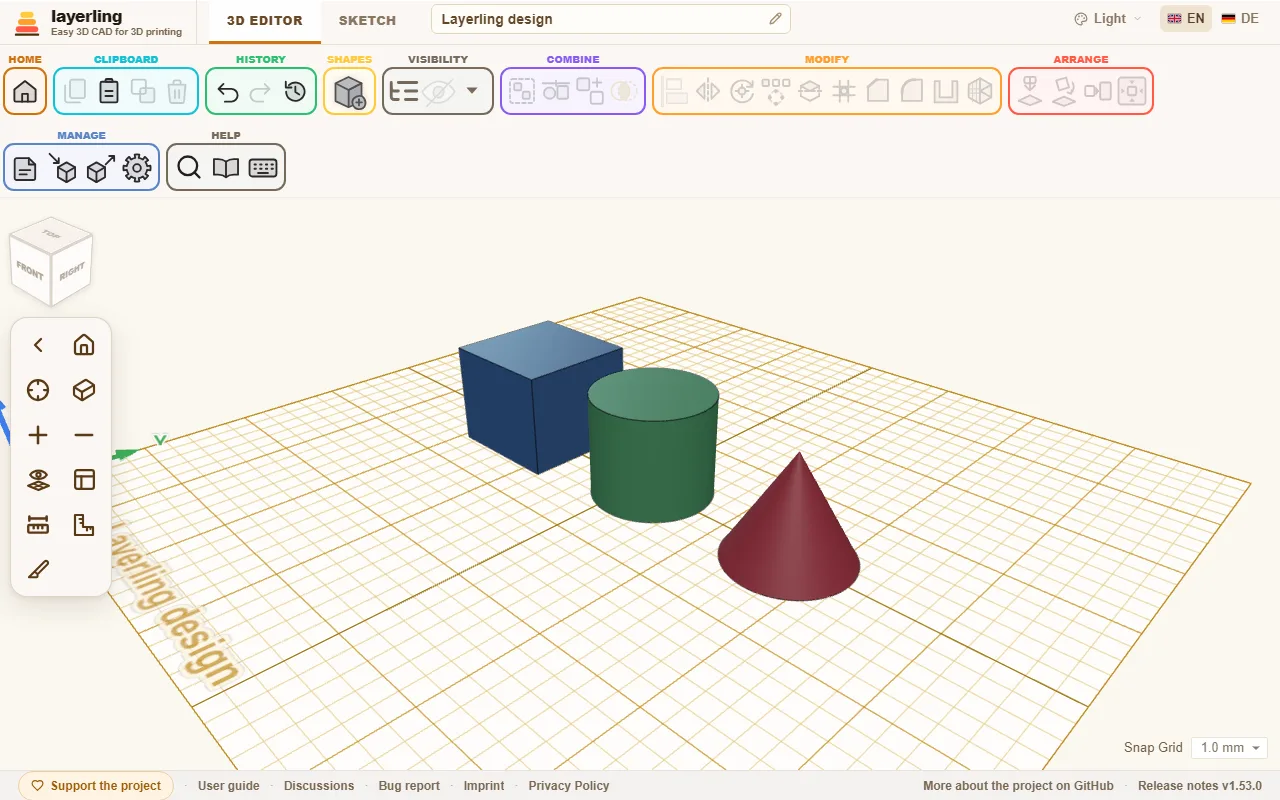
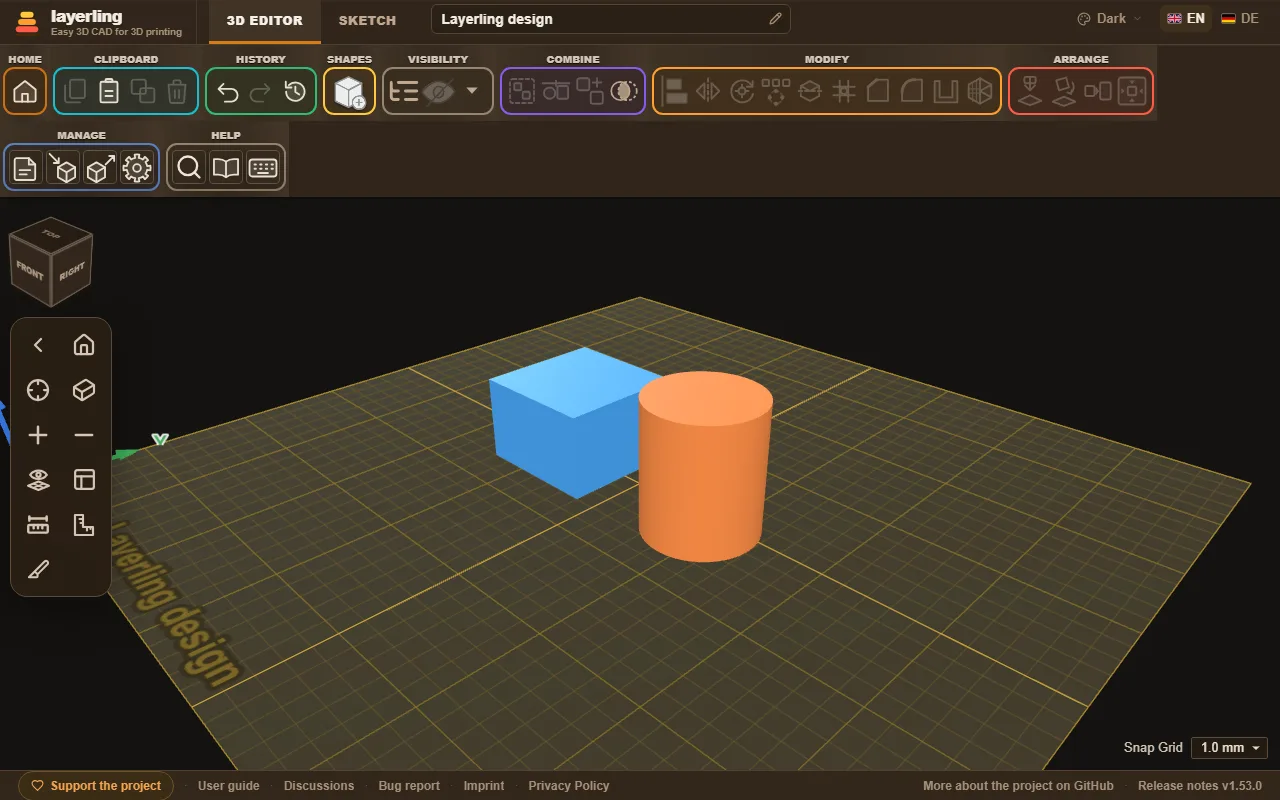
«Dimensione della barra degli strumenti» under «Aspetto» makes the buttons of the ribbon on top, its shape menu and the camera controls on the left smaller or larger: «Piccola», «Media» (as it always was) or «Grande». Small leaves more room for the workplane on a laptop; large is easier to hit on a big screen or with a finger. With large buttons the groups of the ribbon go onto a second row when the window is too narrow for them. The size is kept in this browser and holds for every design.
When layerling feels slow
layerling calculates and draws everything in your browser. On an older computer, with a weak graphics card or on several large screens the view can therefore feel sluggish. This helps:
- «Modalità veloce» under «Aspetto» turns off at once everything that costs the view a lot: shadows, edge lines on all bodies and the camera's inertia. It also draws the view at the screen's own resolution only, which on high-resolution screens is up to four times fewer pixels. Your own settings are kept and apply again as soon as you turn it off.
- The camera keeps turning: When you let go of the mouse after turning, the view turns on for a moment and slows down gently. That is on purpose, not stutter. If you are used to Tinkercad or Fusion 360, turn off «La telecamera continua a ruotare» under «Aspetto», and the view stops at once.
- Single switches: Without fast mode you can also turn off just «Mostra le ombre» or «Linee dei bordi su tutti i corpi».
- Use the graphics card: In Chrome open
chrome://gpu(in Edgeedge://gpu). Next to "WebGL" it should say "Hardware accelerated". If it says "Software only", hardware acceleration is off in the browser's settings. On Windows you can also pick "High performance" for the browser under Settings → System → Display → Graphics, so it uses the real graphics card and not the weaker one in the processor. - Simplify large imported meshes: A model of many hundred thousand triangles slows any view down. How to thin it out is in the chapter on files, under "Simplifying an imported mesh".
- Close other tabs: Every open layerling tab and every other 3D page shares the same graphics card.